Bulk generate alt text
Fill alt text for images already in your Media Library in one pass.
How to run it
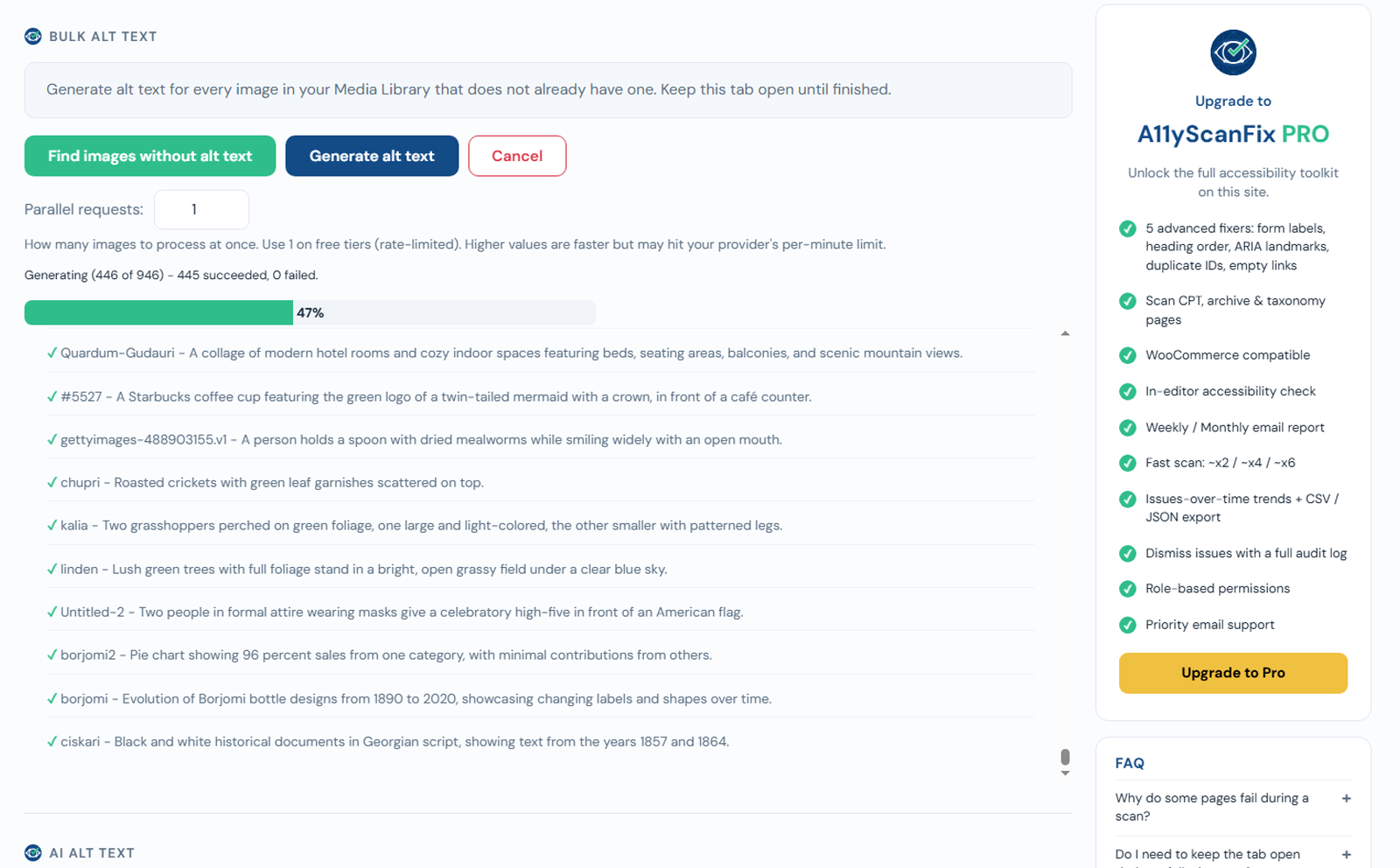
- Go to AcceGuru -> Settings -> AI Alt Text.
- Click Find images without alt text to build the list.
- Click Generate alt text to start.
- A progress bar shows "Generating X of N", with succeeded and failed counts. You can Cancel at any time.
Notes
- Only images that are missing alt text are processed, so re-running is safe.
- Generation uses your own API key, so cost depends on your provider - you pay per image. There is no fixed batch cap; the whole list is processed.
- A speed control lets you generate several images at once - raise it on a fast setup, lower it if your provider rate-limits you.
- The length of each description is capped by Max alt text length on the AI Alt Text settings.
- Large libraries can take a while; keep the tab open while it runs (you can Cancel any time).
Provider pricing and limits
Provider pricing, free tiers, supported models, and rate limits may change. Check your provider before starting a large bulk run.
Review the results
AI alt text is a strong starting point, but it is not perfect. After a bulk run, spot-check your important images - especially ones that carry information (charts, screenshots, diagrams) or act as links - and edit any description that misses context only you know. Purely decorative images are better left with empty alt text than given an AI guess.